Introduction
It is possible to create a new Guest Wi-Fi Splash Page (Landing Page, Captive Portal) from scratch. This article shows the guidelines about how to create a splash page. If you would like to use an existing splash page template, please refer to this link.

Splash Page Elements
Pre-login Splash page: This is the first captive portal when end-users try to connect Wi-Fi Network. The following is a list of design elements for Pre-login Splash Pages.
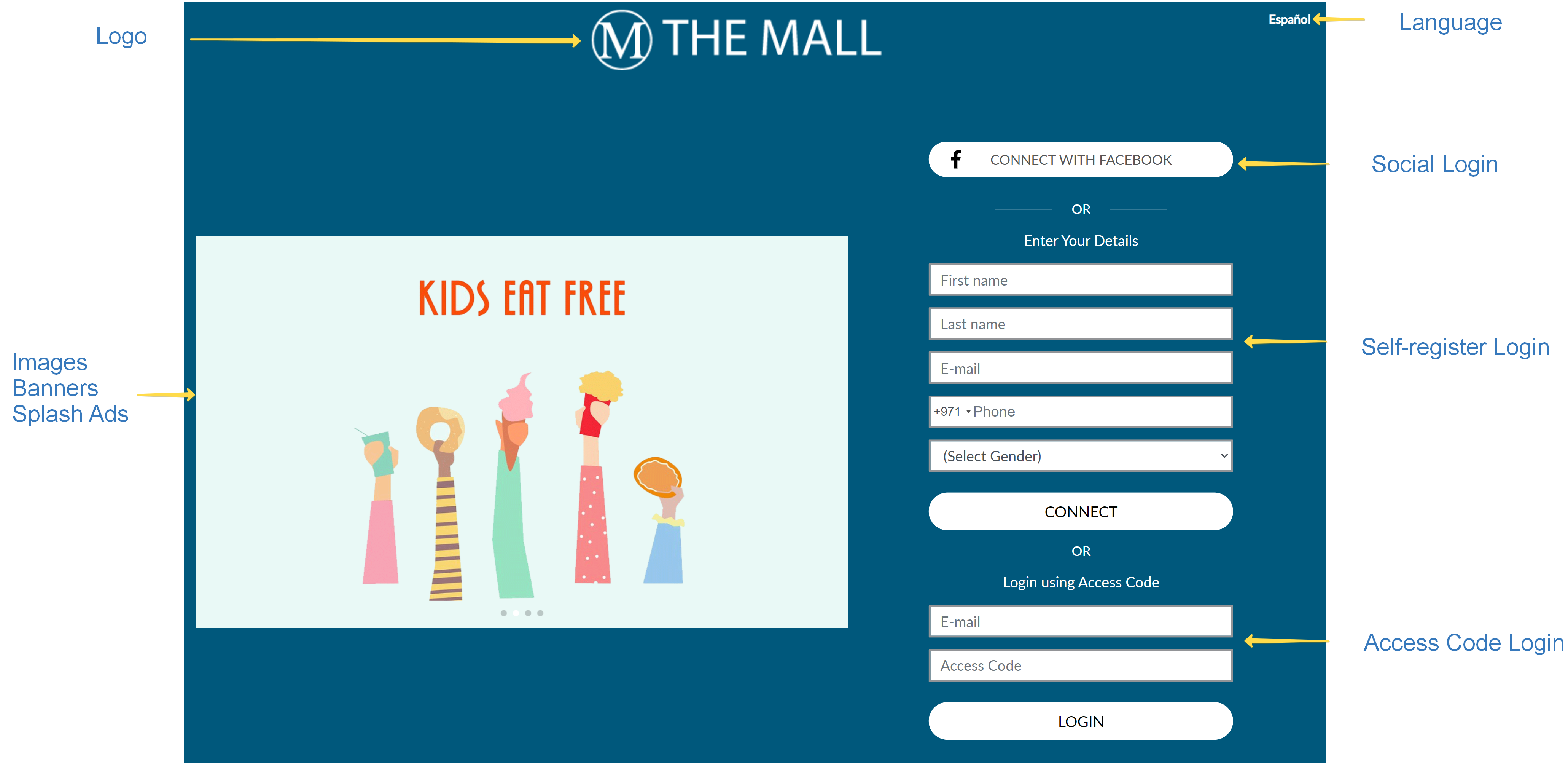
- General: Background color, background image, and fonts should be considered based on corporate branding guidelines
- Logo: Company Logo image (suggested dimension: 200px width)
- Language: If multiple language support is required, it will be displayed here. In case multiple languages are required, the page content in other languages must be provided to IPERA (logo, splash banners / ads, any custom text).
- Images / Banners / Splash Ads: This is optional. If in case required, then the maximum banner width suggested is 1,280 pixel. The above sample banner images are in 1280x768 pixels dimensions. Splash Ads / Banners max file size should be less than 1000kilobytes for the speed of the Wi-Fi Landing Page.
- Social Login: Facebook, Twitter, LinkedIn are the most used options. The design of social login options should be considered by the designer.
- Self-Register Login: This form is generated by the system. A sample form with input fields should be considered part of the design and form style should be optimized in CSS.
- Access Code Login: This form is generated by the system. If Access Code login is required, then the space for the form should be considered part of the design.
Post-login Splash page: After successful authentication, this page appears with a custom welcome message. Alternatively, company website or Facebook page link can also be used as a Welcome message.

The Post Login page has the same elements as the Pre-login page, except for a Welcome message and Social Connect links. You may also include Facebook/TripAdvisor and Instagram widgets to engage with your clients.
Design Guidelines
Following steps should be followed when creating a splash page from scratch.
- Because end-users with different devices connect to Wi-Fi, it must be responsive, adjusted for any device resolution including laptop, tablet, and mobile.
- The design should be user-friendly, allowing end-users to easily connect to Wi-Fi.
- All fonts across the page including social login buttons, text, forms should be based on the brand guidelines.
- In case of multi-language support, content (logo, banners, images, text) for the other languages should be provided.
- The page is displayed in the Mobile device Captive Network Assistant (CNA) browser that automatically opens when connecting to SSID. CNA has a limited browser and doesn't support complex JavaScript codes. Therefore JavaScript support is limited and the use of JavaScript should be kept as simple as possible. IPERA engineers will test the code in a test lab to verify its compatibility across IOS and Android CNA browsers.
- Video Support - Due to the limitation of CNA browser capabilities, Splash Pages video compatibility is limited. Contact IPERA engineers in case video are required part of your design.
HTML Library Guideless
Splash Page form structures are based on the Bootstrap 3 library. You must stick with the same Bootstrap 3 library part of your HTML & CSS coding. Every form item has ID attributes for easier access to the elements for applying styles. The following image shows the fields available in the Register / Login / Hotel Login forms and these fields can be added or remove as per the requirement.
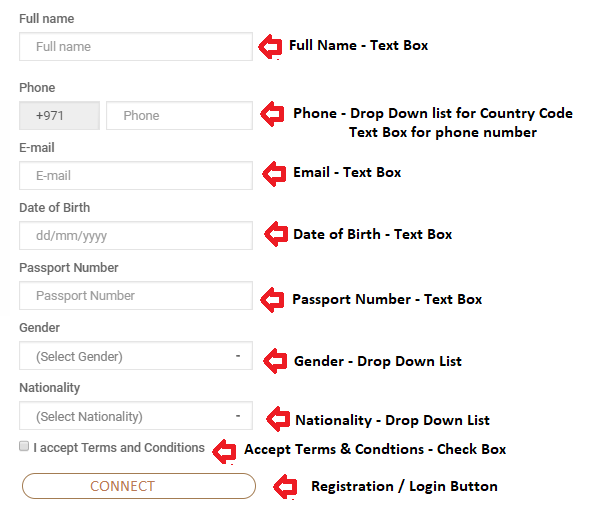
Please note that country code can be set to show only home county number or shows the list of countries.
<span class="help-block"></span> is used for showing validation messages.
Those are hidden by default and will be displayed when there is a validation error. Therefore styles like "display: none !important" must not be applied to these elements. This keeps them hidden all the time even if there is a validation error.
Inline JavaScript (JS) must be avoided. JS tab or external JS files should be used.
Splash page JS code must be valid, otherwise, it will break all the codes on the page and the page will not work properly.
Accessing/modifying these form elements via JS must be avoided. Since Vue JS is used behind the scenes, setting values will have no effect.
Comments
0 comments
Please sign in to leave a comment.