Purpose
This guide explains how to configure Aruba Networks device in the "Controller - AP" architecture, in order to use each Access Point as Hotspot for IPERA Starling Platform.
Please note that the images contained in this article may contain outdated configuration data. Therefore, please check the data contained in the article "Parameters for the Configuration" at the bottom of the page, as they are certainly up to date.
Architecture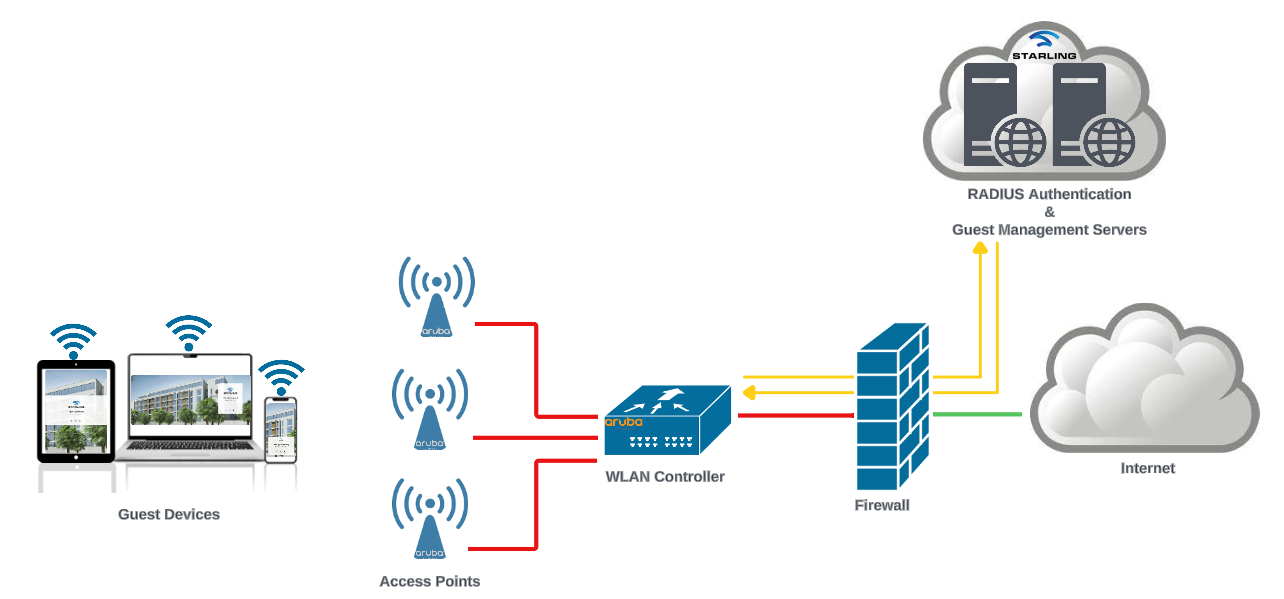
Prerequisites
This guide applies to the ARUBA Controller version 8.0.1.1 or later.
To use an Aruba Networks device as a Hotspot, the controller and Access Points must be connected to the Internet. The Access Points must be configured to correctly point to the controller.
ARUBA Controller can be access through the web UI.
CREATE WLAN
Click Configure > WLAN on the left and then click the + sign to add a new WLAN. Configure with
| Name (SSID) | IPERA-Guest (or whatever you wish) |
| Primary Usage | Guest |
| Forwarding Mode | Tunnel |
Click Next and configure with
| VLAN | 1 (or whatever you use) |
Click Next and configure with
| Captive Portal Type | ClearPass or other external Captive Portal |
Under Auth servers click + then + again to create a new server. Configure with:
| Server Type | RADIUS |
| Name | IPERA |
| IP Address | Insert the radius server IP |
| Auth port | 1812 |
| Accounting port | 1813 |
| Shared key | Enter the shared secret |
| Retype key | Same as above |
| Timeout | 5 |
Click Submit and then configure the further options with:
| Host Addressing | IPv4 |
| Host | Insert the domain here |
| Page | /onboarding |
| Redirect URL | Insert the redirect URL here |
Click Next and then Next again to complete the wizard.
CREATE FIREWALL POLICY
Click Roles & Policies on the left. Select the Aliases tab and click +. Configure with:
| IP Version | IPv4 |
| Name | IPERA (or whatever you want) |
Under Items click + and configure with:
| Rule Type | Name |
| Domain Name | Enter the domain name here |
Click + again and do the same for the following domains:
- engage.iperawifi.com
- static.iperawifi.com
It is mandatory to add the following domains to ACL
- engage.iperawifi.com
- static.iperawifi.com
If you wish to support social network logins, you need to add rules for domains below for each network you plan to support
|
|
login.microsoftonline.com | accounts.google.com | |
| aadcdn.msauth.net | www.google.com | ||
| login.live.com | fonts.gstatic.com | ||
| akamaihd.net | play.google.com | ||
| aadcdn.msftauth.net | ssl.gstatic.com | ||
| www.facebook.com | accounts.youtube.com | ||
| www.facebook.net | accounts.google.com | ||
| static.xx.fbcdn.net | TikTok (**) | *.tiktok.com | |
| api.twitter.com | firebaseinstallations.googleapis.com | ||
| abs-0.twimg.com | storage.googleapis.com | ||
| pbs.twimg.com | *.ibytedtos.com | ||
|
|
www.linkedin.com | *.tiktokv.com | |
| static.licdn.com | open-api.tiktok.com | ||
| media.licdn.com | www.tiktok.com | ||
| ponf.linkedin.com | *.ttwstatic.com | ||
| platform.linkedin.com | *.tiktokcdn.com | ||
| Apple | www.apple.com | ||
| appleid.apple.com | |||
| appleid.cdn-apple.com | |||
| is4-ssl.mzstatic.com | |||
(*) Please refer to the below URL if you wish to use Microsoft login method
https://learn.microsoft.com/en-us/azure/active-directory/manage-apps/review-admin-consent-requests
(**) Google, Facebook, Twitter, and Apple should be also added for TikTok
CAPTIVE PORTAL AND RADIUS CONFIGURATIONS
Click Authentication on the left. Select the L3 Authentication tab and then click the IPERA-Guest_cppm_prof (or your-SSID_ cppm_prof) entry. Configure with:
| Default Role | guest |
| Default Guest Role | guest |
| Redirect Pause | 0 |
| User Login | Enabled |
| Guest Login | Disabled |
| Logout popup window | Disabled |
| Use HTTP for authentication | Enabled |
| Logon wait minimum wait | 1 |
| Logon wait maximum wait | 10 |
| Authentication Protocol | PAP |
| Login page | Insert the URL here |
| Welcome page | Insert the URL here |
| Show Welcome page | Enabled |
| Adding APs MAC address in redirection URL | Enabled |
| White List | Add IPERA list |
| User idle timeout | 3600 |
| Redirect URL | Insert the URL here |
Click Submit to save, Next, select the AAA Profiles tab and click on IPERA-Guest-aaa_prof. Configure with:
| Initial Role | IPERA-Guest-guest-logon |
| RADIUS Interim Accounting | Enabled |
Click Submit to save. Next, click on the RADIUS Accounting Server Group and configure with:
| RADIUS Accounting Server Group | IPERA-Guest-dot1_svg |
Click Submit to save. Next, select the Auth Servers tab and then All Servers > IPERA01 (& IPERA02). Leave all settings as it is except:
| Mode | Enabled |
| MAC Address Delimiter | Dash |
| Station ID Type | AP MAC address |
| Station ID Delimiter | Dash |
| Include SSID | Enabled |
PARAMETERS FOR THE CONFIGURATION
The parameters indicated above for the Services > Hotspot page are mandatory for the proper functioning. The necessary parameters to integrate the device with the Solution are the following:
For AWS
Primary Radius Server
Login page: https://engage.iperawifi.com/onboarding
Welcome page: https://engage.iperawifi.com/onboarding/?res=success
Redirect URL: https://engage.iperawifi.com/onboarding/?res=success
If the controller switch URL is different from default URL which is securelogin.arubanetworks.com then &switch_url=URL need to be added to the Login Page and Redirect URL.
Login Page: https://engage.iperawifi.com/onboarding/?switch_url=iperawifi.com
Redirect URL: https://engage.iperawifi.com/onboarding/?res=success&switch_url=iperawifi.com
For Azure
Primary Radius Server
Login page: https://me.iperawifi.com/onboarding
Welcome page: https://me.iperawifi.com/onboarding/?res=success
Redirect URL: https://me.iperawifi.com/onboarding/?res=success
If the controller switch URL is different (after installing the controller certificate) from the default URL, which is securelogin.arubanetworks.com, then &switch_url=URL needs to be added to the Login Page and Redirect URL.
Login Page: https://me.iperawifi.com/onboarding/?switch_url=https://securelogin.iperawifi.com/cgi-bin/login
Redirect URL: https://me.iperawifi.com/onboarding/?res=success&switch_url=https://securelogin.iperawifi.com/cgi-bin/login
Any changes on the above parameters and values will be communicated with IPERA customers in advance.
Comments
0 comments
Please sign in to leave a comment.