Introduction
Using this tools, it is possible to add a new building

Type Selection
When you select Add New Building from the buildings list, you will see two select Tile or GeoJson buttons from Type section
- Tile: If a building floor plan is in JPEG/PNG format, Tile should be selected
- GeoJson: If a building floor plan is in vector format (e.g.: CAD), then GeoJson should be selected
Adding Building using Tile
If you need to use a JPEG/PNG file, then Tile format should be selected

You may add the building name and floors.
In order to add a new floor, use (+) button. It will add new floors to the list. Once a new floor is added, the following functions are applied
- Using
 button you can add the floor plan
 - The floor plan picture is added to the map. It is now possible to align the picture on the map dragging the corners to adjust to its actual location on the map
- For sensitive map alignment tasks, you may use ALT key to move the corners slower
- After completing the floor plan adjustments, using
 button helps to save it
 - It is also possible to change the order of floors by holding on floor name and dragging up / down
Transparency Settings
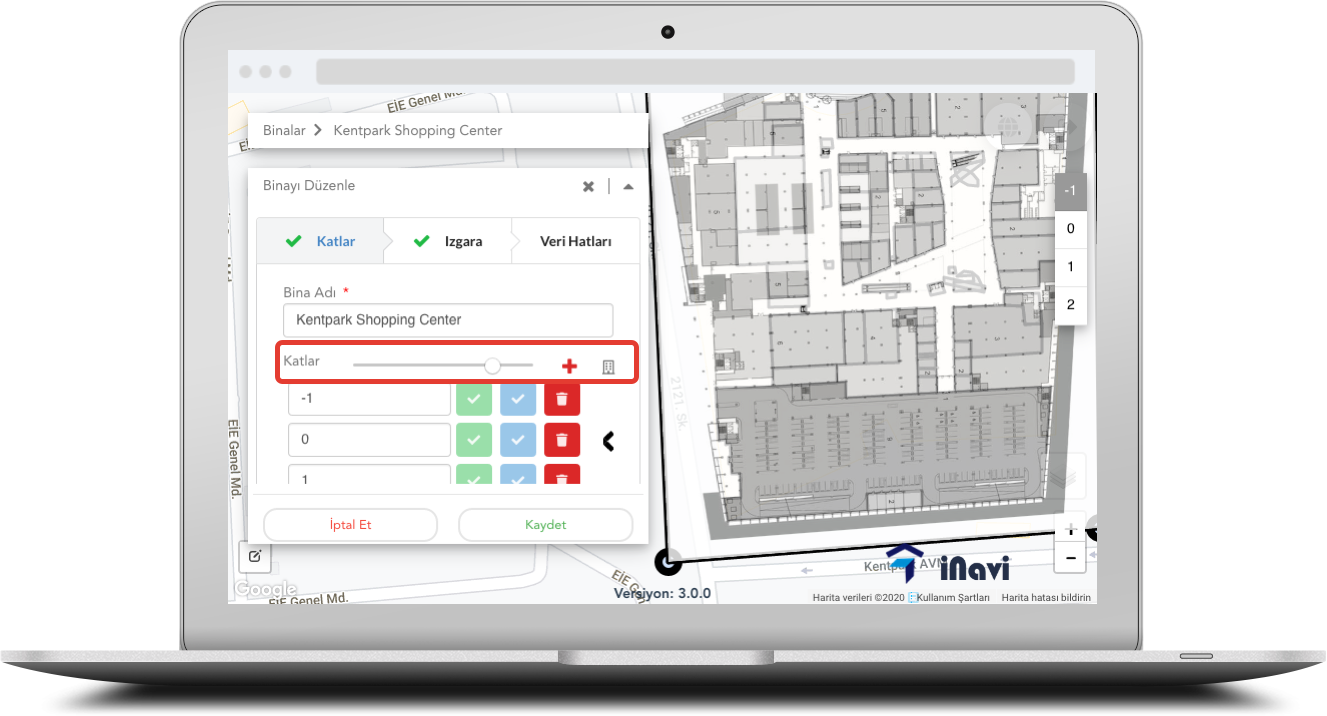
It is possible to use the slider and change the transparency of the pictures. This helps to show the actual map and lines to make sure that the map is adjusted and aligned properly
Free Drawing

This tool is optional and helps to position the floor plan on the map properly The drawing tool is located at left-bottom of the map
It is important to note that those drawings are for reference only, and won't be saved on the map
Using GeoJSON Format

In order to import GeoJSON vector format, you need to click on Upload button next to the building name, and import the file. The vector format file should meet the following criteria in order to be imported
- Files should be in ZIP file
- There should not be any subfolders, all files should be in the root folder in ZIP file
- Area drawing file name should be "alan". Area type should be in "Polygon"
- Paths drawing file name should be "yol". Paths type should be in "Polyline"
- Point of Interests (POI) drawing file name should be "poi". POI type should be in "Point"
- After selecting the file, buildings and floors will be imported automatically. However it is possible ti change them
- Finally, the Ground floor should be selected by clicking Arrow button next to floor, and drag it to the Ground level
Comments
0 comments
Please sign in to leave a comment.